Introduction to quickbooks for personal finance
using quickbooks for personal finances may feel odd at first, but it can turn messy money into clear, actionable steps. If you juggle bills, debts, and savings, you’re likely tangled in complex menus and mixed-up categories. This post shows how QuickBooks can work for your personal goals, not just business tasks.
What does using QuickBooks for personal finances involve?
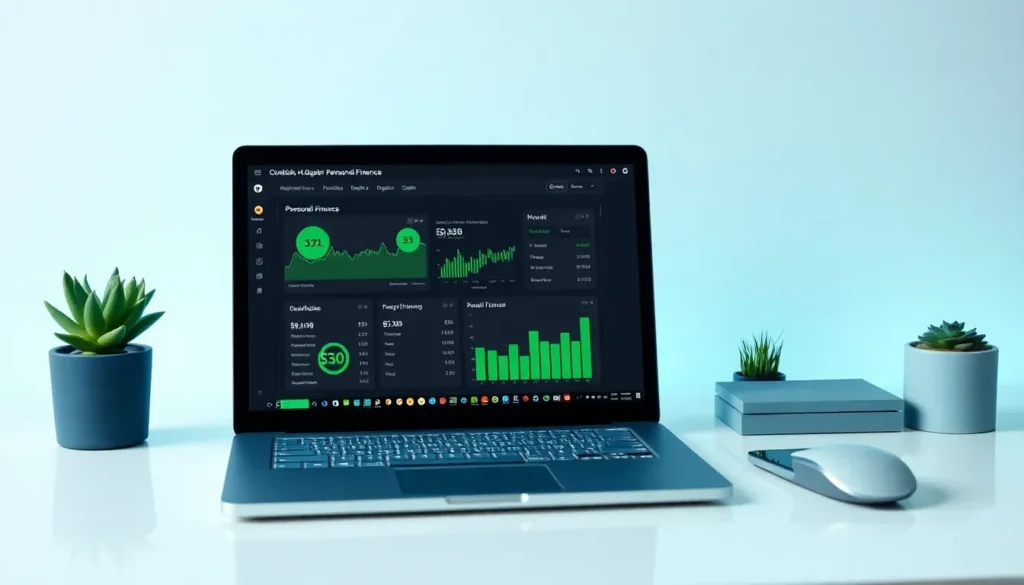
Using QuickBooks for personal finances involves turning a business toolkit into a home-budget engine. You’ll map your money to a personal chart of accounts, connect your bank feeds, and track income, everyday expenses, and debt in one place. The payoff is a clearer view of where money goes and what to change.
Many people hit confusion because the software leans toward business workflows—labor terms, invoicing templates, and sales tax prompts—that don’t fit a household. The result is clutter, miscategorized transactions, and missed insights. This guide offers a practical, structured approach: start with a clean setup, then manage ongoing tasks with clear steps and visuals, so QuickBooks serves your personal goals rather than complicating them.
In the coming sections, you’ll find a concrete setup, straightforward tracking methods, and realistic workarounds that show how to use QuickBooks data to improve debt payoff, savings targets, and expense optimization. You’ll also see how these personal-finance practices feed smarter investing and wealth decisions.
If you’re hungry for a quick reference, we’ll walk you through a detailed tutorial later and link you to complementary resources like our guide on Mint vs. YNAB for broader budgeting context.
Steps for setting up QuickBooks for personal finances
using quickbooks for personal finances starts with a clean slate. You strip out the business clutter, tailor the chart of accounts, and let bank feeds do the heavy lifting. Follow the steps below and you’ll move from confusion to clarity in under an hour.
Adjusting Chart of Accounts
Think of the chart of accounts as your money map. QuickBooks ships with accounts like “Cost of Goods Sold” that don’t help at home. Delete them and add personal ones:
-
- Income: Salary, Side-gig, Gifts
-
- Expenses: Groceries, Utilities, Dining Out, Fuel
-
- Assets: Savings, Emergency Fund, Car Value
-
- Liabilities: Credit Card, Student Loan, Car Loan
Keep the list short—about 15 lines total. You can always add later. Use the “Number” field to group similar items (e.g., 6000-level for living costs) so reports sort nicely.
Example:
Lena, a teacher, removed 23 business accounts and added 12 personal ones. She renamed equity to “Net Worth.” After three months she could see 62% of her income went to fixed costs. She refinanced her car, cut the share to 50%, and redirected the freed-up $220 a month into a Roth IRA.
For a wider look at tools, check Monetify’s list of the best personal finance software.
Classifying Transactions
Every imported line lands in “Uncategorized.” Your job is to give it a home. Three rules keep it simple:
1. Use bank-feed rules
Create a rule that anything from “Whole Foods” hits “Groceries.” Future transactions auto-sort.
2. Split when needed
A $120 Target run can split into “Groceries $70,” “Household $30,” “Clothes $20.” Splits keep category totals honest.
3. Review weekly, not daily
A 10-minute Friday ritual stops backlog panic at month-end.
Quick tip: tag side-gig income with “1099” in the memo. At tax time you can filter the data in seconds.
Creating Budgets and Reports
Budgeting in QuickBooks is forward-looking. Reports are the rear-view mirror. Combine both and you get actionable insight.
1. Build the budget
Go to Budgeting → Add Budget. Copy last month’s actuals, then tweak targets. Aim for 50% needs, 30% wants, 20% savings as a starting line.
2. Turn on “Budget vs. Actuals”
The sheet turns red where you overspend. One glance tells you to slow down or move money.
3. Schedule key reports
-
- Profit & Loss (rename “Income & Expense”) – shows if you lived below your means
-
- Balance Sheet – nets assets vs. debts for true net worth
-
- Statement of Cash Flows – reveals if positive cash came from income or just asset sales.
Example:
Ravi ran a cash-flow report and saw 18% of inflow came from selling old gadgets—unsustainable. He boosted freelance hours, lifted service income to 92% of cash flow, and built a three-month emergency buffer.
External resources for deeper dives:
-
- QuickBooks official comparison page: https://quickbooks.intuit.com/pricing/
-
- NerdWallet article on using QuickBooks for personal books: https://www.nerdwallet.com/article/small-business/quickbooks-online-review
- PCMag review of QuickBooks Online: https://www.pcmag.com/reviews/quickbooks-online
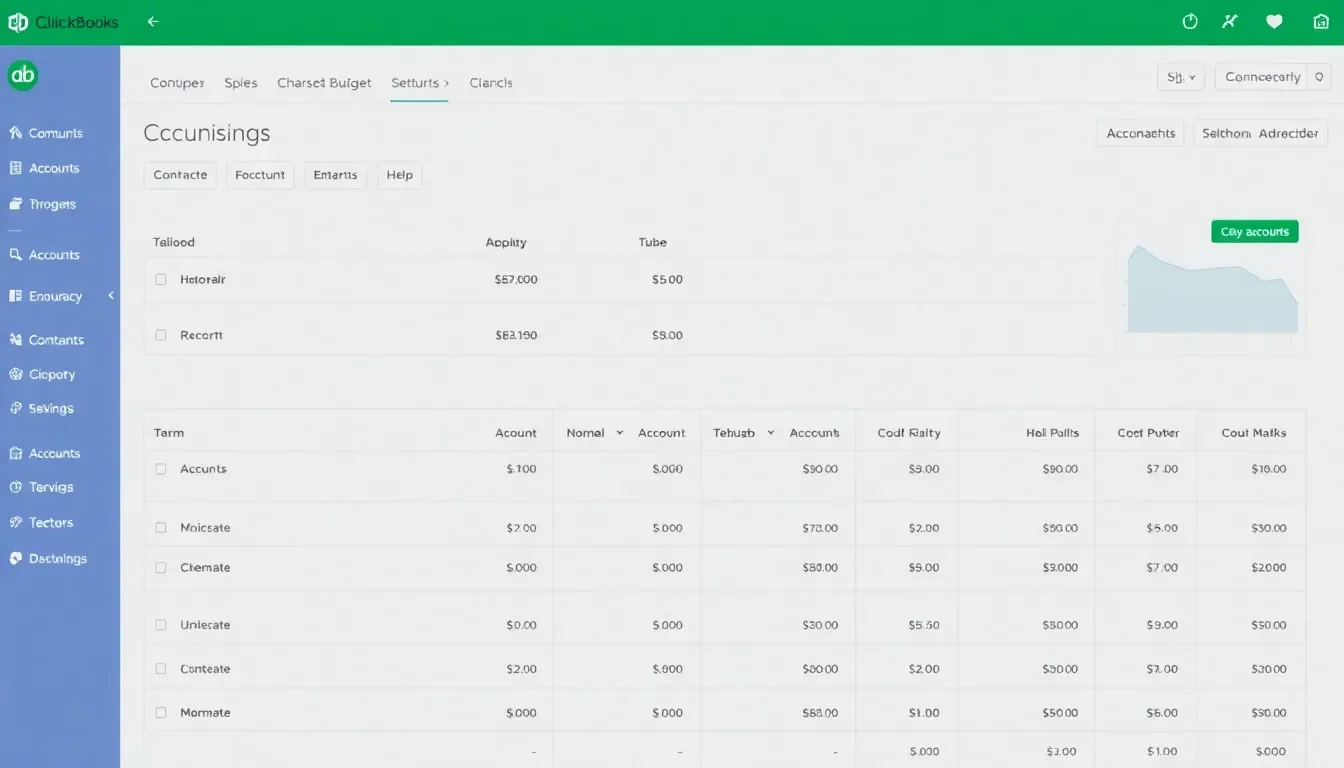
How can using QuickBooks for personal finances enhance financial decision-making?
Using quickbooks for personal finances can turn a jumble of bills, receipts, and transfers into a clear plan. It helps you see where every dollar goes, how debt shifts over time, and where to steer savings. The result is not just data, but guidance you can act on.
Key takeaways from setup and day-to-day use include a clean chart of accounts tailored to personal needs, consistent transaction classification, and budgets that translate into real choices. When you connect bank feeds and run focused reports, you’ll spot patterns fast—like recurring overspend or an empty savings slot—so you can adjust before problems grow. This approach supports smarter investment decisions, because you’re basing asset moves on real spending and saving trends, not guesses.
If you want a quick jump-start, try a practical path: customize accounts relevant to your life, establish a simple monthly budget, and schedule a weekly review of your top reports. These steps turn QuickBooks into a personal finance cockpit rather than a distant business tool. For broader ideas and tips, see our quick reference or dive deeper at personal-finance-tips.
External resources can help you compare tools and confirm setup options:
-
- QuickBooks official pricing and features: https://quickbooks.intuit.com/pricing/
Take the next step with confidence: use the strategies discussed to start a focused, data-driven path toward debt reduction, savings goals, and smarter investing.
FAQ for using QuickBooks for personal finances
What is QuickBooks and how can it aid personal finances?
QuickBooks is a bookkeeping tool designed for business, but many people use it for personal finances too. It helps you track income, categorize expenses, and see how your money stacks up over time. Think of it as a single place to clean up receipts, monitor cash flow, and spot saving opportunities. using quickbooks for personal finances makes it easier to translate daily choices into long-term results.
How do I set up QuickBooks for my personal finances?
Start with the basics: choose QuickBooks Online, then tailor the chart of accounts to your life (income like salary or side gigs; expenses like groceries and utilities; assets like savings; debts). Connect your bank, set a simple monthly budget, and create a couple of key reports (Income & Expense, Balance Sheet). Schedule time weekly to review and adjust. It’s a small setup that pays off with big clarity.
Can I use QuickBooks for budgeting and expense tracking?
Absolutely. QuickBooks shines when you use it to budget against real data. Create a monthly budget, activate Budget vs. Actual reports, and watch red flags appear when you overspend. Categorizing every transaction helps you see exactly what to cut or reallocate, turning budgeting from a chore into a plan you can follow.
Is QuickBooks secure for personal data?
Yes. QuickBooks uses industry-standard security measures to protect data, including encryption and secure login. Always enable two-factor authentication and use a strong password to further reduce risk. Your data is most vulnerable when you don’t review it regularly, so the habit of checking reports matters as much as the software itself.